How to Stream Google Drive to a Folder or Drive Letter in Windows 11

This guide explains how to change how your Google Drive files appear on your Windows 11 computer. You can choose to see your files as a separate drive letter or as a standard folder.
Google Drive is a cloud storage service from Google. It lets you save files online and sync them across all your devices.
Why change your Google Drive settings?
By default, Google Drive often acts like a separate hard drive on your computer. Some people prefer this because it feels like a physical USB stick. Others prefer a folder because it keeps all their files in one place. Choosing the right setup makes it easier to find your documents and helps other programs talk to your files more easily.
What happens when you are done?
Once you finish these steps, your computer will update how it shows your files. If you picked a drive letter, you will see a new drive icon in your File Explorer. If you picked a folder, your files will appear in a specific directory on your hard drive.
Note: You must have administrative access to your computer to change these system-level settings. 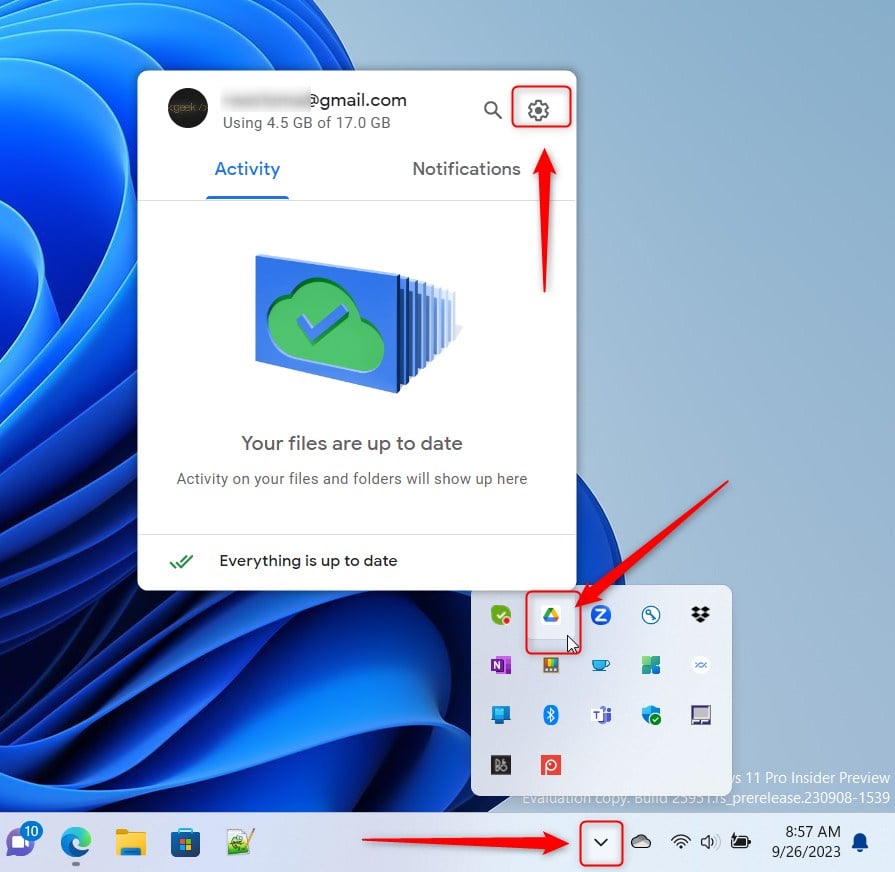
- Open the Google Drive icon in your taskbar notification area.
- Click the Settings (gear) icon at the top right of the window.
- Select Preferences.

- Click the Settings gear icon again on the new page.

- Look for the section labeled “Google Drive streaming location.”
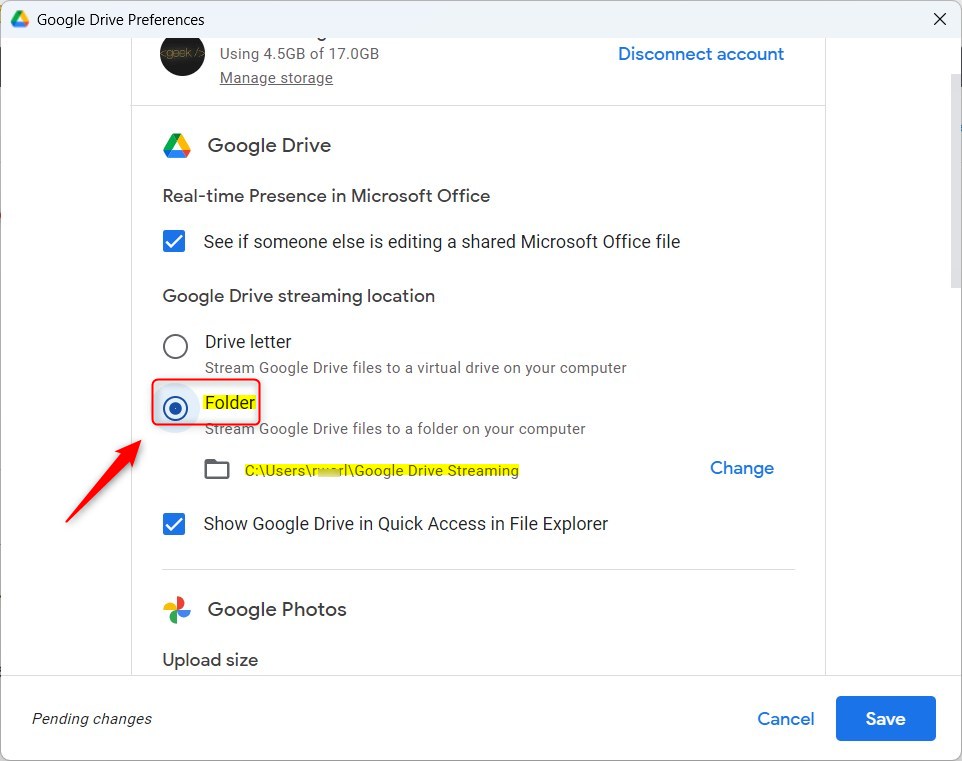
- Choose between Drive letter or Folder.
- If you choose a drive letter, pick any available letter from the list.
- If you choose a folder, your files will be placed in a location like
C:\Users\Username\Google Drive Streaming.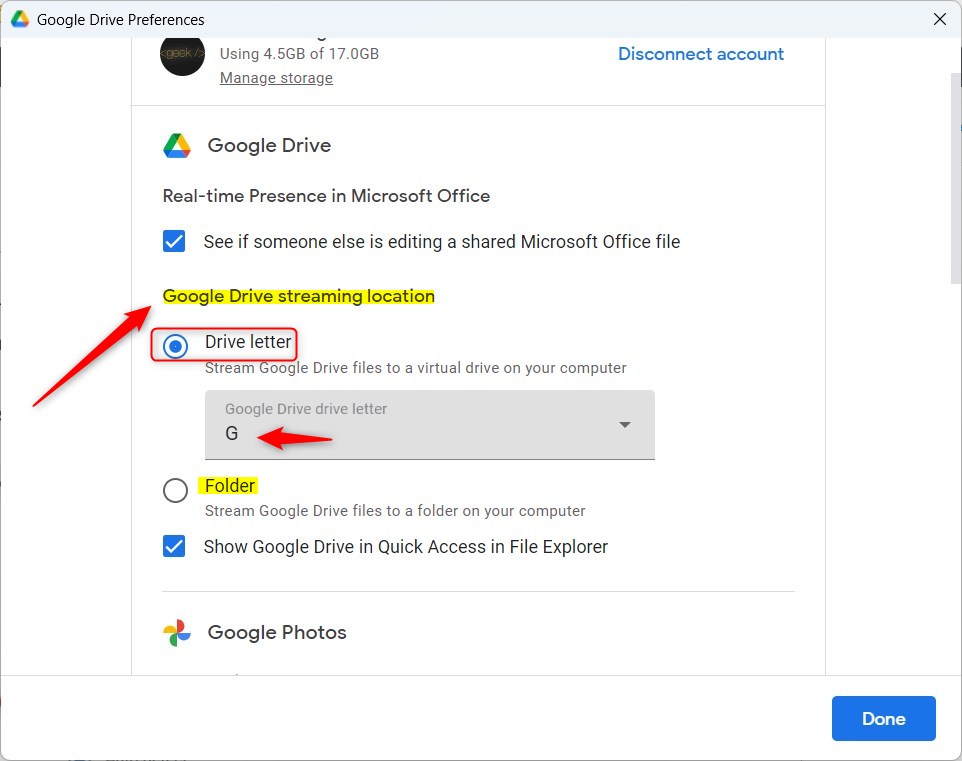
- Click the Save button to finish.
Summary
You can customize how Google Drive appears on your PC to better fit your workflow. By choosing a drive letter, you treat your cloud storage like a physical disk. By choosing a folder, you integrate your cloud files directly into your existing user profile. Both methods allow you to access your files quickly and keep your computer organized.
For more help with cloud services, check out these related guides: Dropbox and OneDrive.
How do I stream Google Drive to a folder in Windows 11?
Can I change the drive letter for Google Drive in Windows 11?
What are the benefits of using a drive letter for Google Drive?
Is it better to use a folder or a drive letter for Google Drive?
What happens if I don't save my Google Drive streaming settings?
Was this guide helpful?




[…] settings with the Google Drive app on Windows. Users can install and start Google Drive at login, stream Google Drive to a folder or driver letter, pause syncing, and […]